
Help & support
Quick guides and answers to common questions.
If something’s not working, email me at support@teatonight.app.
New little things
Common questions
What’s free, and what does Plus add?
Everything you need to plan the week is free: up to 24 recipes and 2 collections, planning this week and next, the shopping list in Reminders, Your dinners, Siri and widgets. No ads.
Plus adds bringing recipes in from a photo, link or post (your first three are free), unlimited recipes and collections, planning as far ahead as you like, Sort by Magic and copying weeks. One subscription covers the whole family with Family Sharing.
Try it free for two weeks, then £19.99 a year.
Do I need to enter a complete recipe?
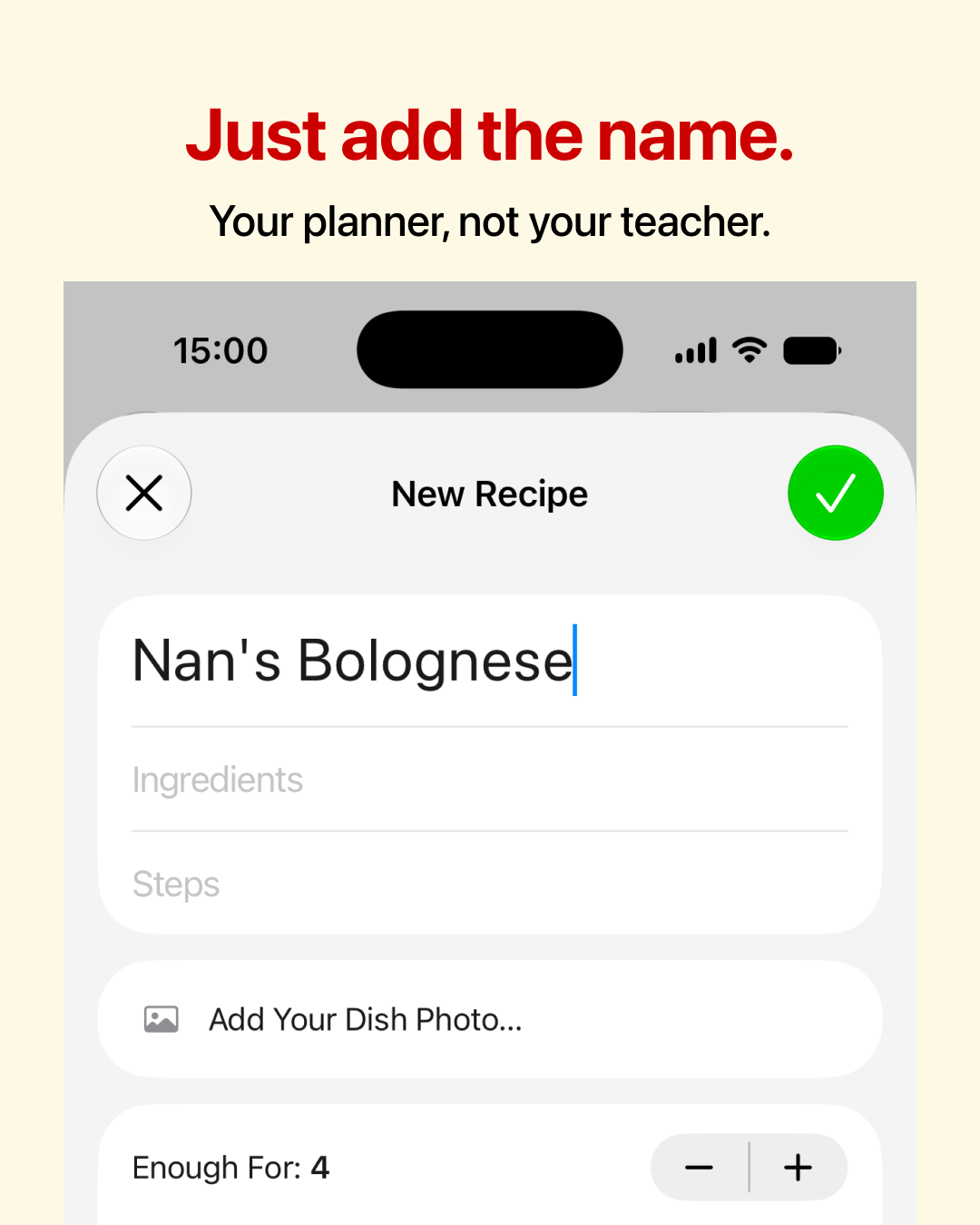
No. Start with a name and put the meal in your week. If you already know how to cook it, there’s no need to write out the method.
Add ingredients when you want them included in the shopping list. Save them once, and they’re ready whenever you plan that meal again.
How does recipe import work?
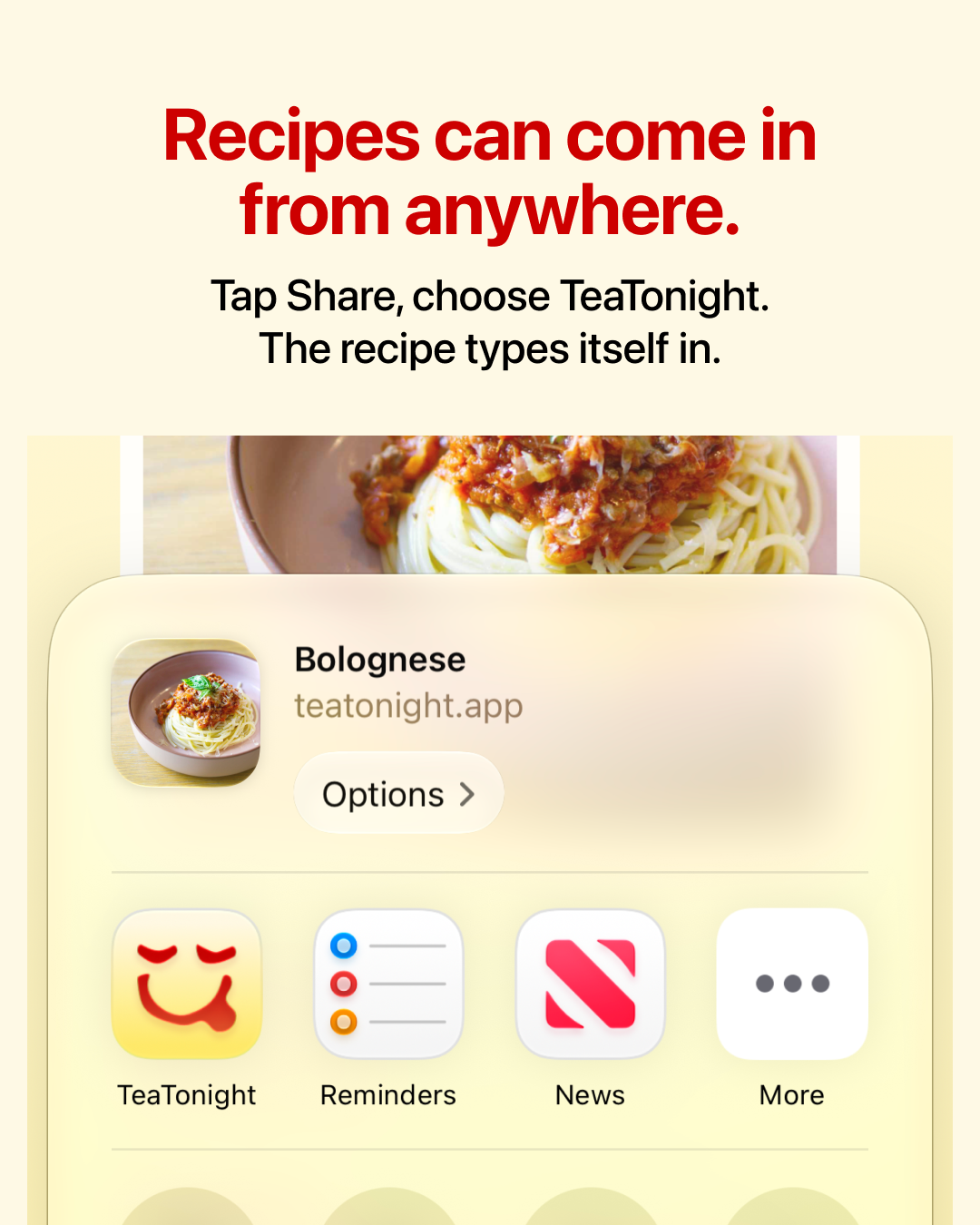
Take a photo of a recipe or paste a website link. TeaTonight reads it and types it in for you to review. You get three free import tries; further imports are included with Plus.
The photo or link is sent to our processing service for that request. Imported recipes can contain mistakes, so check the ingredients, quantities and instructions against the original before cooking.
Which devices does it work on?
iPhone, iPad and Mac. Sign in to the same Apple Account on each and your recipes and plans sync between them through iCloud. TeaTonight Plus covers all of them. There’s no Android or web version.
Planning and shopping
How does Sort by Magic work?
Choose your meals, then let Sort by Magic arrange the week. It takes cooking time, variety and how long ingredients usually keep into account, with longer recipes towards the weekend and similar meals spaced apart. You can adjust the result.
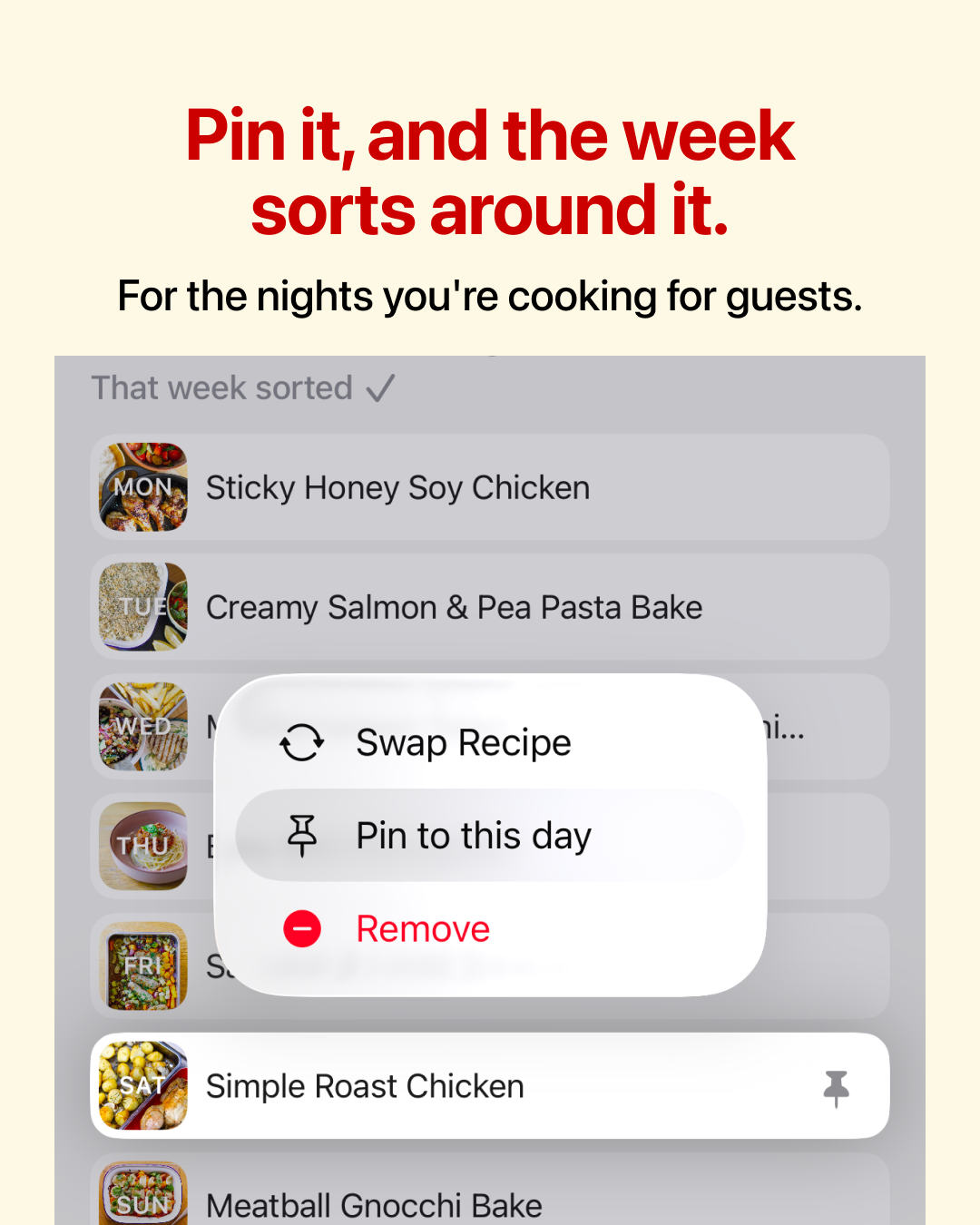
Need a meal on a particular day? Put it there and pin it first. Sort by Magic arranges the rest around it.
Sort by Magic is included with TeaTonight Plus.
Can I use a previous week again?
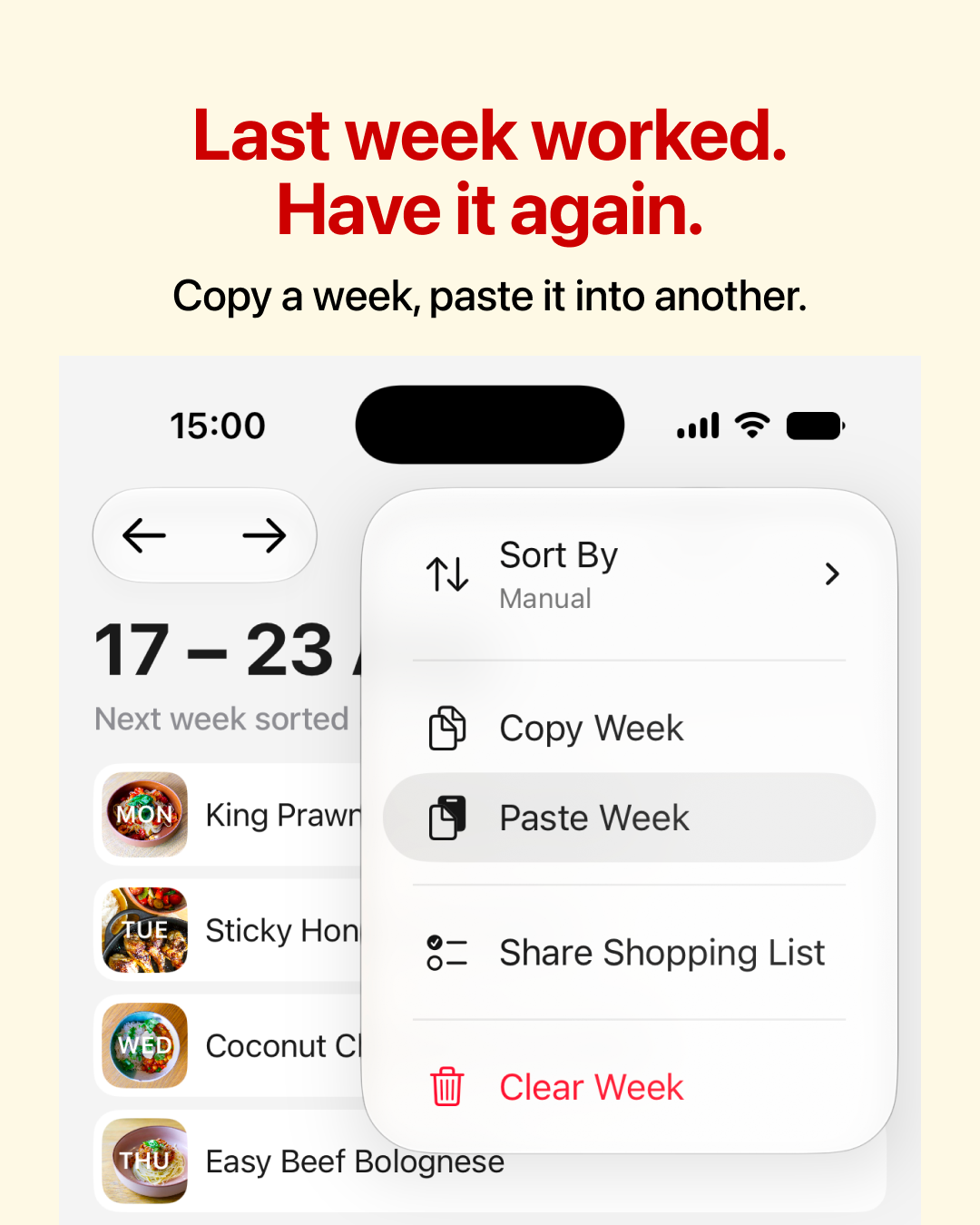
Yes, with Plus. Copy a week that worked for your household and paste it into another, then change whatever needs changing.
How do I send the shopping to Reminders?
From your planned week, choose “Add all ingredients to Shopping List in Reminders”. Select the destination list and check which ingredients you want to send.
If something is missing, check that the meal has ingredients saved with it. A meal name is enough for planning, but it won’t add anything to your shopping list on its own.
Can my family share the shopping list?
Yes. Share a list with your family in Apple Reminders, then choose that list when sending ingredients from TeaTonight. Once they’ve accepted the invitation, everyone can add items and tick things off as they shop.
How to share a list in Apple Reminders
Data and subscriptions
Where’s my data?
Your saved recipes and plans live in your own private iCloud account and sync across supported devices signed in to that account. There’s no TeaTonight account, and we can’t browse your saved library.
If you aren’t signed in to iCloud, your recipes and plans stay on that phone and aren’t synced to iCloud. The app lets you know.
To remove your data, use Me → Delete My Data in the app.
How do I cancel Plus?
Subscriptions are handled by the App Store. On iPhone or iPad, go to Settings → [your name] → Subscriptions. On a Mac, open the App Store, click your name, then Account Settings → Subscriptions → Manage. Choose TeaTonight and select the cancellation option. If you cancel a paid subscription, you keep Plus until the end of the period you’ve already paid for.
Still need help?
Email support@teatonight.app and we’ll get back to you within two working days. Tell us what you were trying to do and what happened. Include your device (iPhone, iPad or Mac), its software version and your TeaTonight version. A screenshot can help too.
More little things that help

Good to know
Who is TeaTonight for?
For whoever looks after dinner in your house. You already know what your family likes to eat, and TeaTonight is a weekly dinner planner for those meals, with room for something new when you fancy it.
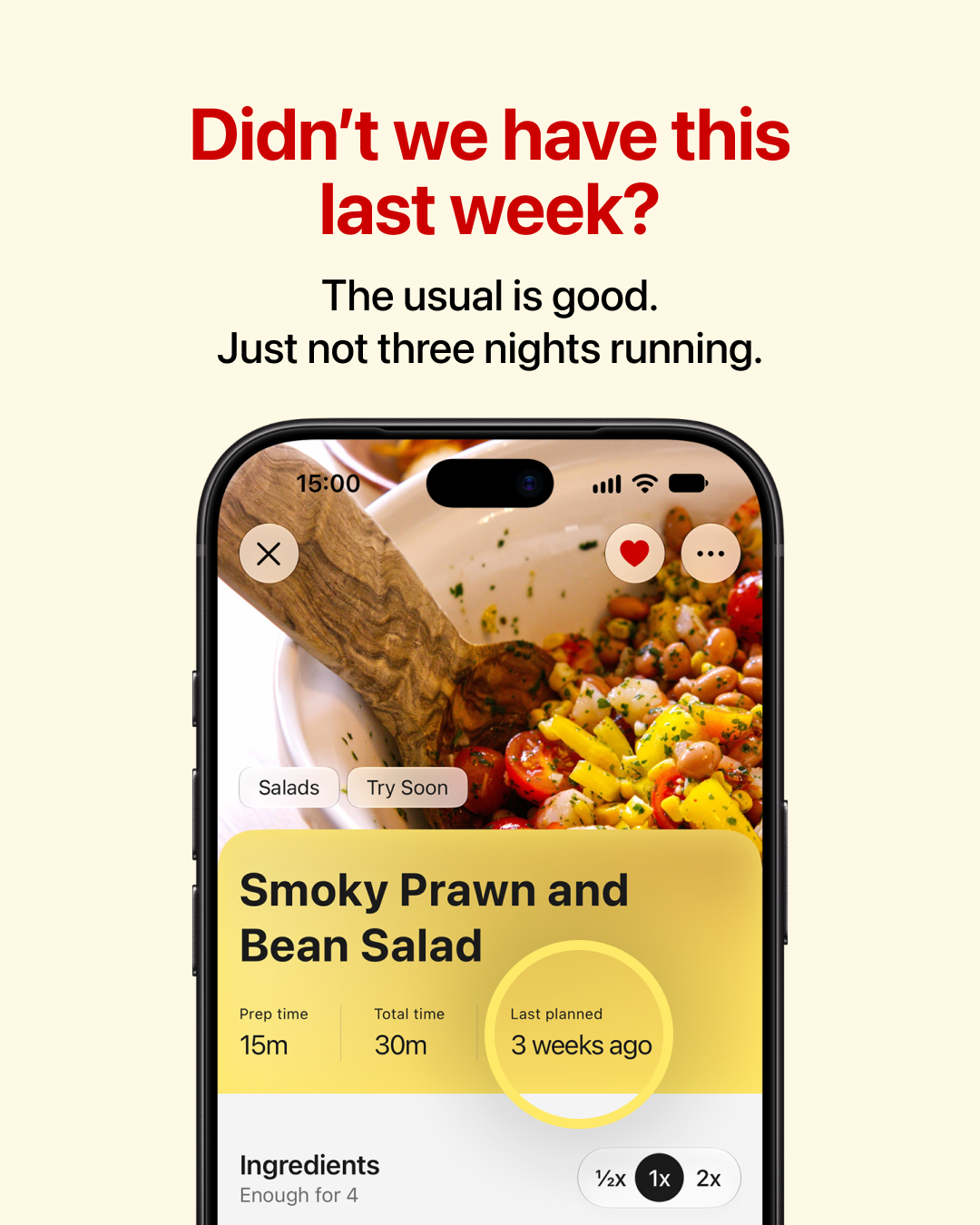
Add meals as you plan. Each one stays for next time, with its ingredients and steps. Every week after that, you just pick.
Made by a dad who does the dinners, for anyone who does too.
Why does dinner still take so much thinking?
What are we having tonight? Didn’t we have that yesterday? Have we got everything in? That’s dinner admin. The same small questions, taking up room every week.
TeaTonight keeps your usual meals, puts them into a week and sends the ingredients to one shopping list. The everyday dinners are sorted and out of your head. There’s a bit more room for that recipe you’ve been meaning to try. Or for something that has nothing to do with dinner.
Do I still have to work out what goes on each day?
You can put meals where you want them, or let Sort by Magic in TeaTonight Plus arrange the meals you’ve chosen. Guests on Saturday? Pin their dinner to Saturday. Sort by Magic arranges the rest around it, taking cooking time, variety and how long ingredients usually keep into account.
Then send the week’s ingredients to your shared family shopping list in Apple Reminders. Everyone can see what needs buying and tick things off as they shop. Your week and shopping, sorted.
Why “tea”?
In much of England, “tea” isn’t just the drink. It’s the evening meal, the one everyone gathers round at the end of the day. “What’s for tea tonight?” is how we’ve always asked, so naming the app was the easy part.
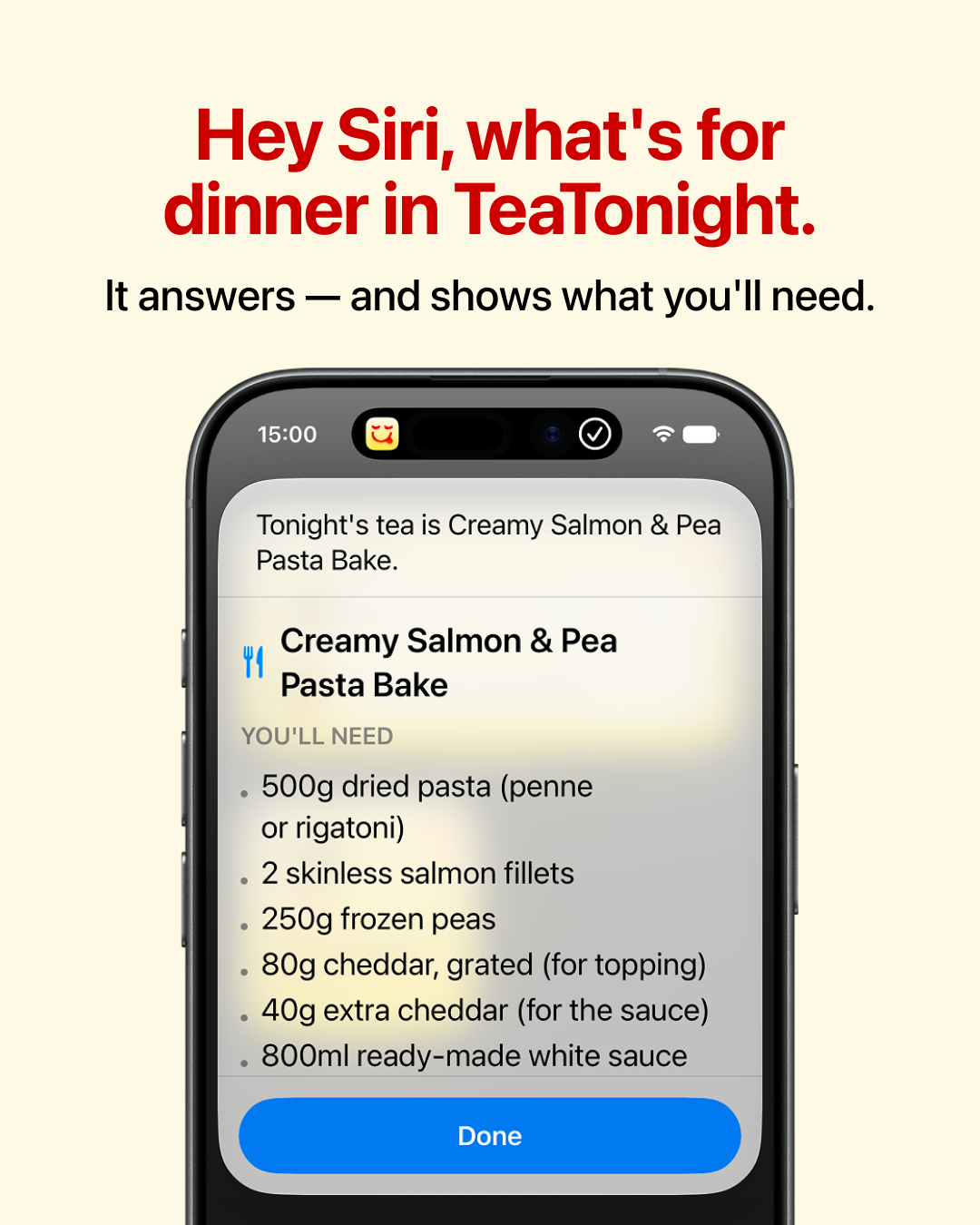
It’s what you ask Siri, too: “Hey Siri, what’s for tea in TeaTonight?”
